

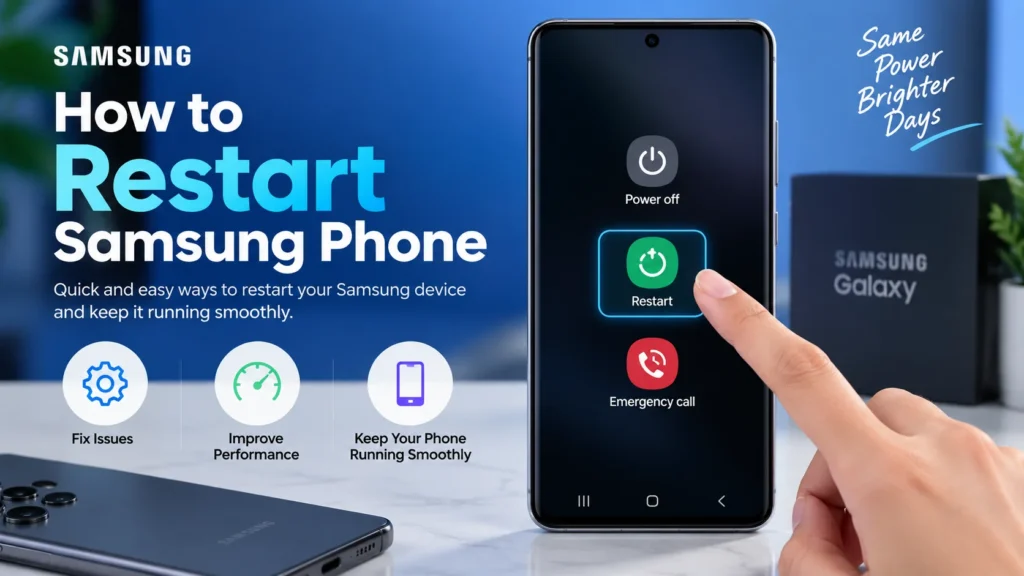
Whether a Samsung Galaxy phone is running slow, frozen on a black screen, or just needs a routine restart after a software update, knowing the right method matters. Samsung phones actually support a few different restart approaches depending on whether the phone is responsive or completely frozen. This guide walks through every method, from a simple restart to a full force reboot.
Normal Restart vs. Force Restart: What’s the Difference
Before diving into steps, it helps to understand the two core categories:
- A normal restart is used when the phone is working fine but just needs a routine reboot, after installing a software update, to clear minor slowdowns, or as regular maintenance. It’s initiated through the power menu and shuts the phone down cleanly before turning back on.
- A force restart (sometimes called a soft reset) is for when the phone is frozen, unresponsive, or stuck on a black screen and won’t respond to a normal restart at all. It doesn’t delete any data, it simply forces the device to power cycle using a specific button combination.
Neither method erases any data, apps, or settings. That distinction matters because “restart” is often confused with “factory reset,” which is an entirely different, data-erasing process covered separately below.
Method 1: How to Normally Restart a Samsung Phone
- Press and hold the Side button (and the Volume Down button at the same time, on most modern Galaxy models) until the power menu appears.
- Tap Restart from the menu.
- Confirm if prompted. The phone will power off and turn back on automatically.
On some Galaxy models and One UI versions, the power menu can also be reached by swiping down twice to open the Quick Settings panel and tapping the Power icon, then selecting Restart from there.
Method 2: How to Force Restart a Frozen Samsung Phone
This is the method to use when the screen is frozen, unresponsive, or won’t respond to a normal restart attempt at all.
- Press and hold the Volume Down button and the Side button (power button) at the same time.
- Keep holding both buttons for more than 7 seconds (some newer guides recommend 10-15 seconds to be safe).
- The screen will go black, the phone will vibrate, and the Samsung logo will appear as it restarts.
- Release both buttons once the logo appears.
According to Samsung’s own support documentation, this force restart works across current Galaxy smartphones and is the recommended first step for a frozen or unresponsive device before trying anything more advanced.
Method 3: Restarting Older Samsung Phones (Physical Battery Models)
Very old Samsung phones with a removable battery use a different approach entirely, since they predate the current button-combination method:
- Remove the back cover and take out the battery.
- Wait about 30 seconds.
- Reinsert the battery and power the phone back on normally.
This method is largely obsolete for any Galaxy phone released in the past several years, since modern Samsung devices no longer use removable batteries, but it remains relevant for anyone troubleshooting an older device.
What to Do If a Force Restart Doesn’t Work
If a force restart doesn’t resolve a frozen or unresponsive phone, a few next steps are worth trying before assuming a factory reset is necessary:
- Check available storage. Insufficient storage or memory space is a common cause of freezing and slow performance. Go to Settings > Battery and device care > Storage to check available space, and aim to keep at least 20% free.
- Try Safe Mode. Booting into Safe Mode disables third-party apps temporarily, which helps identify whether a downloaded app is causing the freezing. To enter Safe Mode, press and hold the Side key and Volume Down key, tap Power Off, then after the screen turns off, press and hold Volume Down and the Side key again until the Samsung logo appears, then release the Side key while continuing to hold Volume Down until “Safe Mode” appears in the corner of the screen.
- Run Device Care. Under Settings > Battery and device care, tap Optimize now to let the phone automatically scan for and resolve minor performance issues.
- Check for a pending software update. Go to Settings > Software update > Download and install to make sure the phone is running the latest version, since outdated software can contribute to instability.
Restart vs. Factory Reset: Don’t Confuse the Two
It’s worth being explicit about this distinction, since the terms get mixed up often. A restart, whether normal or forced, powers the phone off and back on without touching any data. A factory reset is a completely different, much more drastic process that erases everything on the phone, apps, photos, accounts, and settings, and returns it to its original out-of-box state. Factory resets are typically reserved for selling a phone, giving it away, or resolving persistent software problems that a simple restart can’t fix, and should never be treated as a routine troubleshooting step.
Why It Matters
Understanding the difference between a normal restart, a force restart, and a factory reset prevents two common mistakes: unnecessarily wiping a phone’s data over an issue a simple restart would have fixed, or wasting time repeatedly trying a normal restart on a phone that’s actually frozen and needs the force-restart button combination instead. Knowing exactly which method applies to a given situation is the fastest way to get a Samsung phone back to normal.
For continuing coverage of Samsung devices, troubleshooting guides, and the latest smartphone news, visit Tech News Reports.