

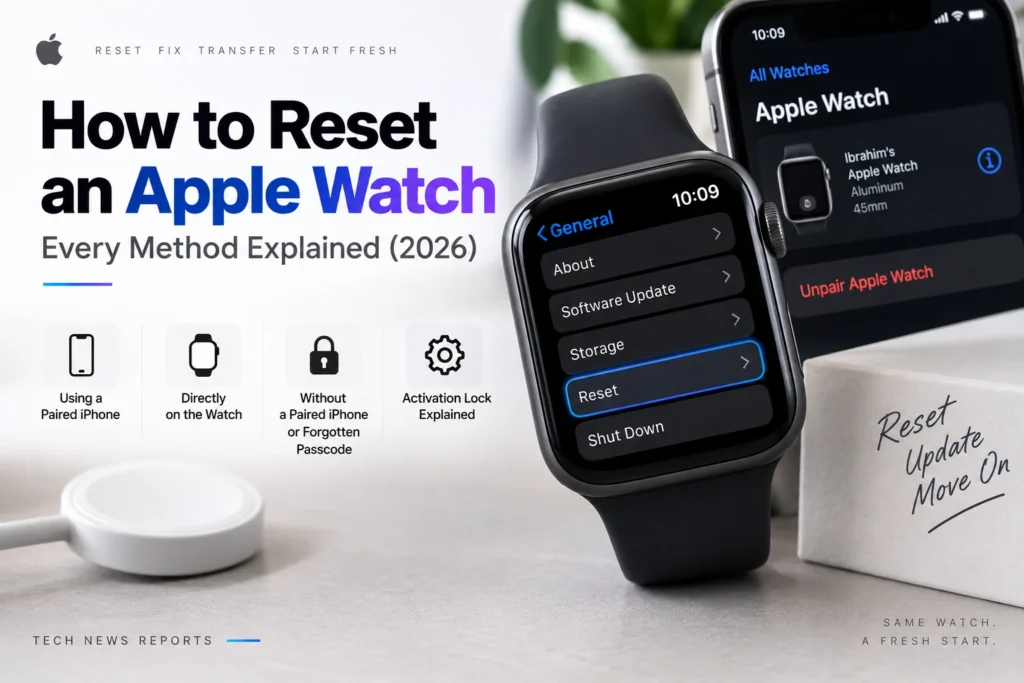
Whether you’re selling your Apple Watch, fixing a software glitch, or getting ready to hand it down to someone else, resetting it properly is the difference between a clean handoff and a device stuck behind someone else’s Activation Lock. This guide walks through every reset method, including what to do if you don’t have your paired iPhone or you’ve forgotten your passcode.
Before You Reset: What to Check First
A few things matter before starting, regardless of which method is used:
- Charge the watch above 50%. A full reset can take anywhere from three to fifteen minutes depending on how much data is stored on the watch, and a device that dies mid-erase can end up needing professional repair.
- Know your Apple Account password and your Apple Watch passcode. Both may be required depending on the method used.
- Back up anything important first, if possible. Unpairing through a paired iPhone creates a backup automatically, but resetting directly from the watch does not.
- Apple Watch has no reset button and no SIM slot. The small holes in the watch case are for sound output and water-depth measurement (on Apple Watch Ultra models), not a hidden reset switch. Never insert anything into them.
Method 1: How to Reset an Apple Watch Using a Paired iPhone (Recommended)
This is Apple’s official recommended method, and the one to use whenever the paired iPhone is available. Unpairing does three things in a single pass: it backs up the watch to the iPhone, erases all content and settings, and removes Activation Lock, the security feature that would otherwise require the original owner’s Apple Account password before anyone else could set up the watch.
- Keep the Apple Watch and iPhone close together for the entire process, since the unpairing process communicates over Bluetooth.
- Open the Watch app on the iPhone.
- Go to the My Watch tab, then tap All Watches in the top-left corner.
- Tap the (i) info button next to the watch being reset.
- Tap Unpair Apple Watch.
- If the watch has a cellular plan, choose whether to keep or remove it. Keep the plan if the same watch and iPhone will be paired again later.
- Tap Unpair [Watch Name] to confirm.
- Enter the Apple Account password when prompted. This step disables Activation Lock.
- Wait for the process to finish. The Watch app automatically creates a backup before the erase completes.
Method 2: How to Factory Reset an Apple Watch Directly on the Watch
This method works without an iPhone nearby, but it comes with one important caveat: it erases the watch’s data but does not remove Activation Lock. Anyone setting the watch up afterward will still need the original owner’s Apple Account credentials, which matters a great deal if the watch is being sold or given away.
- On the Apple Watch, press the Digital Crown to reach the app screen, then tap Settings (the gear icon).
- Tap General.
- Tap Reset.
- Tap Erase All Content and Settings.
- Enter the watch’s passcode if prompted.
- Tap Erase All to confirm.
- Wait for the reset to complete.
If the watch is being sold, transferred, or given away, use Method 1 instead whenever possible, since it’s the only method that fully removes Activation Lock.
Method 3: How to Reset an Apple Watch Without a Paired iPhone or a Forgotten Passcode
This scenario covers two related situations: no access to the originally paired iPhone, or a forgotten passcode that’s locking the watch entirely.
- Place the Apple Watch on its charger.
- Press and hold the side button until the Power Off slider appears.
- Press and hold the Digital Crown firmly.
- Tap Erase All Content and Settings when the option appears.
- Tap Reset to confirm.
- Wait for the process to finish.
As with Method 2, this approach erases the watch’s content but does not remove Activation Lock on its own. The original owner’s Apple Account password will still be needed to complete setup afterward, since Activation Lock is tied to the Apple Account, not the passcode.
Resetting an Apple Watch Series 3 Specifically
The reset process for Apple Watch Series 3 follows the exact same steps as newer models, whether resetting through a paired iPhone, directly on the watch, or without a paired device. The one practical difference is the Series 3’s smaller storage capacity and older processor, which can make the erase process itself run closer to the higher end of that three-to-fifteen-minute window, so patience matters more on this specific model than on newer, faster hardware.
What Happens to Activation Lock
Activation Lock is the single most important detail to understand across every reset method described here. It’s a security feature tied to the Apple Account that was used to originally set up the watch, designed to prevent a lost or stolen device from being reused by someone else.
- Unpairing through a paired iPhone removes Activation Lock automatically, since the process confirms the Apple Account password as part of unpairing.
- Resetting directly on the watch, whether the standard method or the passcode-forgotten method, does not remove Activation Lock. The watch will still ask for the original Apple Account credentials during setup.
Anyone planning to sell, trade in, or give away an Apple Watch should use the iPhone-based unpairing method specifically to avoid handing over a device the next owner can’t actually activate.
What to Do After Resetting
Once the reset completes, the watch restarts and displays the Start Pairing screen with an animated blue swirl, ready to be set up as new or restored from the backup created during unpairing. To set it up again with the same iPhone, bring both devices close together and follow the on-screen pairing prompts, which will offer the option to restore from the backup made just before the reset.
Why It Matters
Getting the reset method right isn’t just a technical detail, it directly determines whether a resold or gifted Apple Watch actually works for its next owner. A watch reset the wrong way can end up Activation Locked to someone who no longer has access to it, effectively turning a functional device into an unusable one. Understanding the distinction between the iPhone-based method and the on-watch methods described here is the single most useful thing to know before resetting any Apple Watch for resale or transfer.
For continuing coverage of Apple devices, troubleshooting guides, and the latest hardware news, visit Tech News Reports.